

Console labels and limits change periodically. Where this article and your own Play Console disagree, the Play Console is authoritative.
Adding testers to a closed test sounds like one step. It is three: choosing an access method, configuring it in Play Console, and each tester opting in with their own Google account. Most "my testers aren't counting" problems come from confusing those stages.
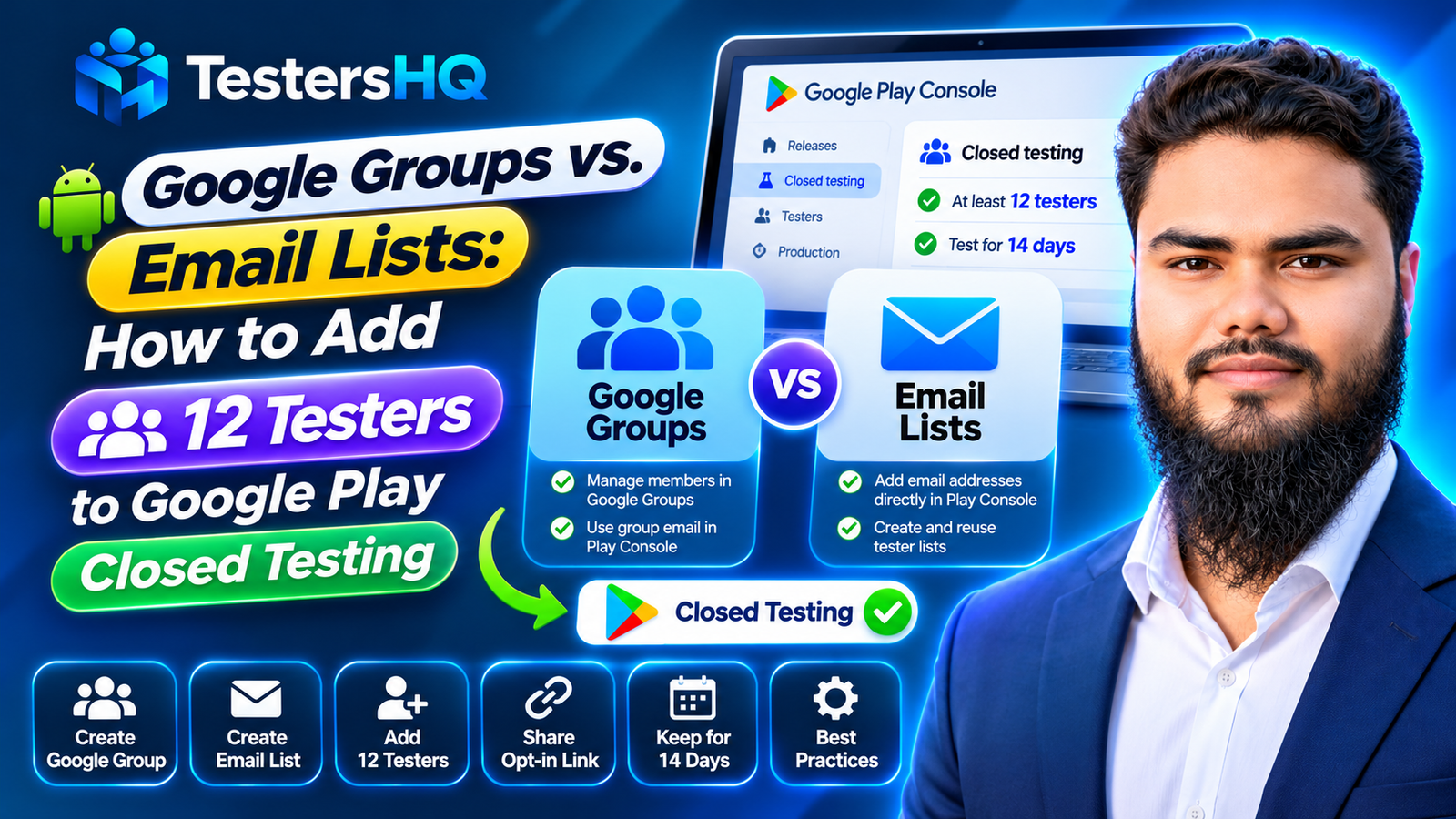
Play Console supports two ways to control who can join a closed test: email lists and Google Groups. This guide covers Google Play closed testing Google Groups setup, the email list alternative, the limits of each, and the workflow that gets 12 testers opted in rather than merely invited.
Google Groups vs. email lists: what's the difference?
Both methods control who is eligible to join your closed test. Neither performs the opt-in for the tester.
| Aspect | Email list | Google Group |
|---|---|---|
| How testers are added | You type addresses into a list, or upload a CSV | You add members to the group, then enter its address in Play Console |
| Where membership lives | Inside Play Console | In Google Groups, separate from Play Console |
| How Play Console uses it | The selected list is attached to the track | The group address (yourgroupname@googlegroups.com) is attached to the track |
| Published limits | 200 lists per account, 50 per track, 2,000 testers per list | No size limits |
| Updating access | Edit the list; a CSV upload replaces its contents | Change membership without editing the track |
| Best suited to | Smaller groups saved and reused across tracks and apps | Larger groups, or testers already organised in a group |
| Extra step for testers | Opt in using the link | Join the group first, then opt in |
Google describes email lists as suited to smaller groups you save and reuse, and Google Groups as the option for larger groups because they have no size limits. Neither is officially ranked above the other.
What is a Google Group for Google Play closed testing?
A Google Group is a membership group with its own address, typically ending in @googlegroups.com. In a closed test, Play Console accepts that address instead of individual emails.
When you attach a group to a track, only members can join the test. Play Console does not show you the member list — membership lives in Google Groups, the single source of truth for who is allowed in.
The critical point: being a member is not the same as being opted in. Google states that with a Google Group, users must join the group before opting in. Membership enables eligibility; the tester still accepts the test.
Google also requires a Google Account or Workspace account to join a test. An address that cannot be associated with a Google Account cannot complete the opt-in, however it was added.
How to create a Google Group for your 12 testers
These steps follow Google Groups' general workflow. Menu labels vary between a personal Google Account and a Workspace organisation.
- Open Google Groups and sign in with the account that should own the group.
- Create a new group with a clear name such as "App Name Closed Testers".
- Set the group email address — the part before
@googlegroups.comthat you paste into Play Console. - Add a description naming the app under test.
- Configure membership and privacy settings so only intended testers can join; a private group needs no public visibility.
- Add or invite the intended testers by email address.
- Confirm membership is complete. An unaccepted invitation is not a completed membership.
- Copy the exact group address.
Google notes some groups allow immediate joining, others require approval, and some only by invitation from an owner. With an approval model, do not send the opt-in link until membership is confirmed.
Google also documents that a Google Account is required to join and participate, and that people without a Gmail address can join by associating their email with a Google Account. A work address must therefore be linked to a Google Account, not merely invited.
How to add a Google Group to Google Play closed testing
- Sign in to Play Console and select the app.
- Go to Test and release > Testing > Closed testing.
- Open the intended track with Manage track. With multiple closed tracks, confirm which one you are editing.
- Select the Testers tab.
- Choose Google Groups as the access method, then enter the group address in the documented format, such as
yourgroupname@googlegroups.com. - Provide a feedback URL or email address. This appears on the tester opt-in page.
- Copy the shareable opt-in link.
- Save changes.
Two checks before distributing anything: confirm the track you edited is the one your release is on, and confirm the group address is character-for-character correct. A typo produces a track that looks configured but admits nobody.
How to create an email list for 12 testers
- Open the app in Play Console and go to Closed testing.
- Click Manage track and open the Testers tab.
- Under Testers, click Create email list.
- Enter a list name. Google notes the name can be reused for future tests on any of your apps.
- Add addresses separated by commas, or upload a CSV.
- Click Save changes, then Create.
- Select the list in the track's tester configuration.
- Add a feedback address, copy the opt-in link, and save.
The CSV rules are hard constraints:
- One address per line, with no commas between addresses.
- Uploading a CSV overwrites the list's stored addresses — it does not append.
- UTF-8 with BOM files are rejected. Re-save as plain UTF-8.
The published limits are generous for 12 testers: 2,000 testers per list, 200 lists per developer account, 50 lists per track. Keep one list per campaign so overwrites are predictable.
Which method should you choose?
This is a workflow judgement, not an official ranking.
Google Groups tends to fit when you already organise testers in a group, when membership is maintained by someone other than the Play Console user, or when the same cohort is reused across apps.
Email lists tend to fit when you want everything visible inside Play Console, when the list is short and stable, and when you would rather not maintain a second system. For one 12-tester campaign, a list is usually simplest.
One asymmetry matters: if a tester leaves a group, they lose eligibility without you touching Play Console; if you edit a list, a CSV upload silently replaces its contents. Whether you pick Google Play closed testing Google Groups or a Play Console email list, tell testers what to do — recruiting guidance is in how to get 12 testers for closed testing.
How testers actually join the closed test
Google's documentation is specific: the opt-in link appears only when the app's status is Published — Draft or Pending publication apps show no link. After clicking it, testers see an explanation of tester responsibilities and a link to opt in, and each tester needs to opt in using the link.
| Step | Google Groups route | Email list route |
|---|---|---|
| 1 | Tester joins the Google Group and the membership is confirmed | You add the tester's address to the list attached to the track |
| 2 | Tester opens the opt-in link | Tester opens the opt-in link |
| 3 | Tester accepts and completes the opt-in | Tester accepts and completes the opt-in |
| 4 | Tester installs the test app from Google Play | Tester installs the test app from Google Play |
Steps 3 and 4 are the tester's own actions. You can configure access perfectly and still have zero opted-in testers: configuration grants permission, the tester grants participation.
Common Google Groups and email list mistakes
- A group address under Email Lists. Group addresses belong in the Google Groups method.
- Using the wrong group address. One wrong character and nobody gets in.
- Forgetting to add testers to the group. Play Console can look complete while the group is empty.
- Sending the link before membership is confirmed. Google requires membership first.
- Assuming membership or a listed email equals opt-in. The tester must still accept the test.
- Overwriting a list with a CSV upload. The upload replaces existing addresses.
- Uploading UTF-8 with BOM. Play Console rejects it.
- Not saving the tester configuration. Unsaved changes do not exist.
- Sharing the link before the release is live. It only displays when the app is Published.
- Expecting instant availability. A first test link can take several hours.
- Skipping the tester's actual opt-in. Nothing else matters if they never complete it.
These are setup problems, not proof that anything resets the 14-day requirement. Diagnose the specific cause; the tester-count troubleshooting guide covers the common ones.
How Google Groups and email lists relate to the 12-testers / 14-day requirement
For personal developer accounts created after November 13, 2023, Google requires a closed test with at least 12 testers opted in continuously for at least 14 days before production access can be requested. The rule is scoped to those accounts, not every Play Console account.
Three consequences follow:
- A list entry is not an opt-in. Twelve addresses satisfy nothing until those people accept the test.
- A group member is not an opted-in tester. Membership is the prerequisite, not the participation.
- The clock is per tester and continuous. Testers who opt out before 14 days do not count, and a later re-opt-in must run 14 consecutive days again.
A group of 40 members can still leave you short if only eight opt in and stay opted in. Before applying, verify the opted-in count in Play Console, not the size of your group or list. The 12-testers and 14-day requirement guide covers eligibility in full.
Meeting the minimum makes you eligible to apply. It does not guarantee approval.
Final checklist before starting the 14-day closed test
- Correct track selected for your release.
- Access method chosen correctly: group address under Google Groups, individual addresses under Email Lists.
- Group or list configured and attached to the track.
- Addresses checked: no typos or duplicates; CSV in plain UTF-8 without BOM.
- Group memberships completed where used, not merely invited.
- Release published and available to the track.
- Opt-in link visible and copied, which requires the app to be Published.
- Every tester has opted in with a Google Account or Workspace account.
- Instructions sent: what to test, how to report, and to stay opted in.
- Feedback channel configured and monitored.
- Opt-in continuity monitored so a dropout is noticed early.
The 14-day closed testing checklist tracks the same items day by day once testing starts.
Frequently asked questions
Is Google Groups better than an email list?
Neither is officially better. Groups have no size limit and centralise membership; lists live in Play Console and are easy to reuse.
Can I use a Google Group instead of 12 individual emails?
Yes. Play Console accepts a group address, and only group members can join that test.
Does joining a Google Group count as a tester opt-in?
No. Membership is a prerequisite; each tester must still accept the test.
Do testers need to join the group first?
Yes. Google states that with Google Groups, users must join the group before opting in.
Can I change group members during testing?
Yes, in Google Groups. Removing someone removes eligibility; re-adding does not restore an unbroken period.
Can I use the same group for multiple apps?
Yes, though consider the privacy implications of sharing one audience across products.
What if a tester is listed but never opts in?
Nothing counts. The address is eligible; the tester has not participated.
How long until the opt-in link appears?
Google notes the first published test link can take several hours, and later changes can too.
Does adding 12 testers guarantee production access?
No. It contributes to eligibility; Google reviews each application.
Which method suits recurring campaigns?
A saved list is easiest inside Play Console; a group is easier when someone else maintains membership. Both require fresh opt-ins.
Official Google resources
Policy and limit statements here come from these pages. Where a page disagrees, the official page wins.
- Set up an open, closed, or internal test — email lists, Google Groups, list limits, CSV rules, opt-in links, and tester requirements
- App testing requirements for new personal developer accounts — the 12-tester and 14-day rule and continuous opt-in
- Create a group and choose settings — group name, address, and membership options
- Add people to your group — inviting and adding members
- Find and join a group — joining, requesting membership, and the Google Account requirement
Conclusion: configure access, then confirm opt-ins
Google Groups and email lists solve the same problem differently, and neither replaces the tester's opt-in. A group address grants eligibility to its members; a list of emails grants it to those addresses. Either way, the person must accept the test with a Google Account.
For eligible accounts, the deciding requirement is at least 12 testers opted in continuously for 14 days. Check the opted-in count in Play Console — not your group size — before applying.
Need support running a documented closed test with real testers? Explore TestersHQ.