

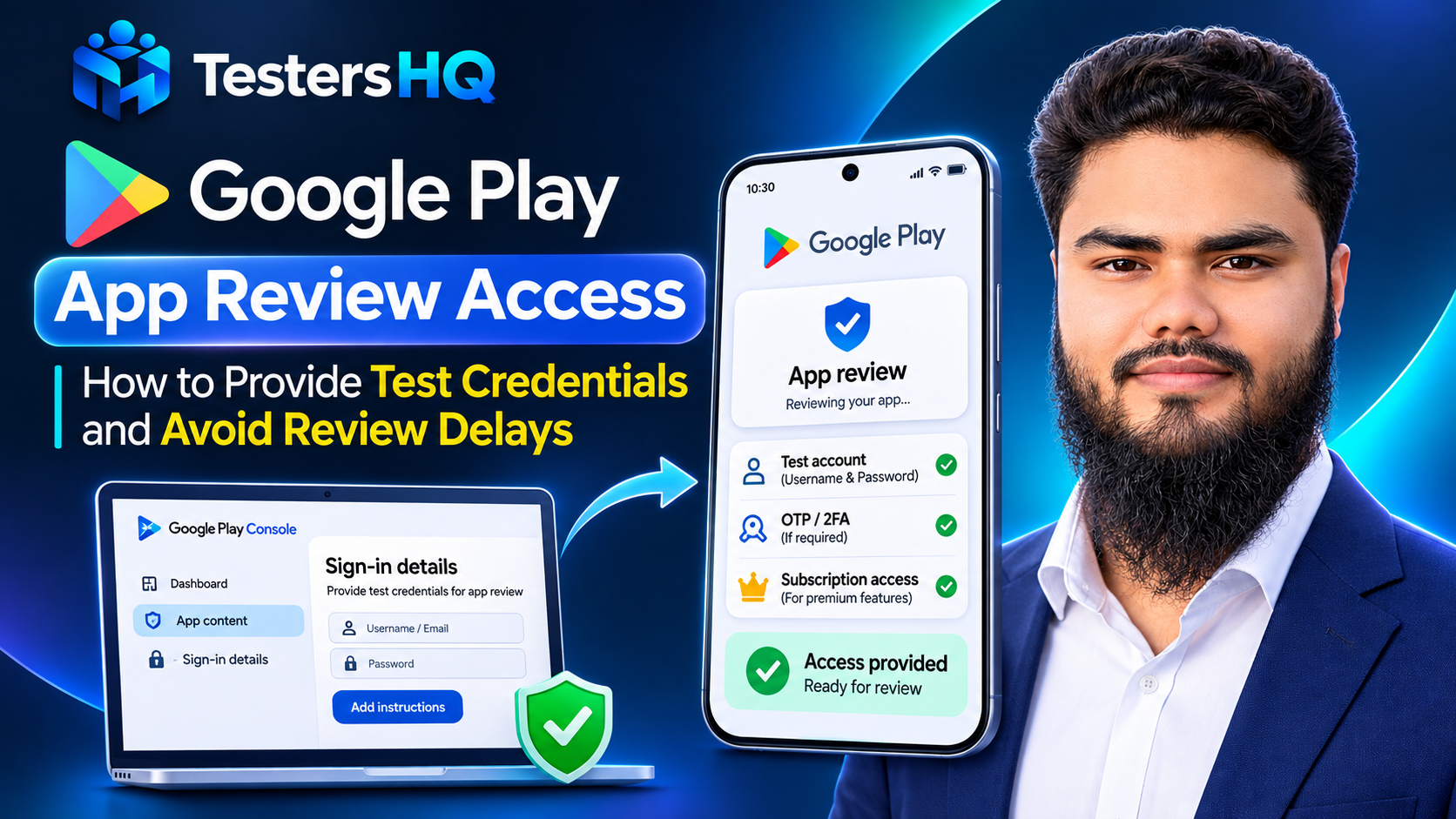
A reviewer installs your app, reaches a sign-in screen, and stops. If the credentials in Play Console do not work, everything behind that screen goes unreviewed — and Google states the app may be rejected.
Google Play app review access decides whether that happens: a declaration you complete, a demo account you keep alive, and instructions a stranger can follow without you.
What Is Google Play App Review Access?
App review access is the information you give Google so reviewers can log in and reach all of your app's functionality. Google ties it to policy review: to check Developer Program policy compliance, its team must get inside the app.
It covers more than a username and password. Google names standard sign-in details, an active demo account, QR codes, and "specific instructions for accessing restricted areas".
Why Google Play Needs Access to Restricted App Features
A reviewer can only assess what the app shows them. When a feature sits behind a login, a membership check, a paywall or a location rule, the reviewer sees a wall instead.
Typical examples:
- Registration and sign-in flows, plus anything behind an account dashboard.
- Membership areas, subscriptions and premium tiers.
- Features that only appear in certain countries or regions.
- Content reached through a QR code, invite link or activation PIN.
The consequence is documented, not speculative. Google's sign-in details guidance says that if a provided password expires, it may not be able to review the app, "and, therefore, the app may be rejected." Its publishing tips repeat it: without valid login information, "we won't be able to review your app."
Rejection also costs review time you cannot predict, and Google warns that repeated rejections may lead to suspension.
What Login Credentials Must Developers Provide?
Google lists its requirements explicitly. These are obligations, not tips:
- Accessible at all times, reusable, and valid regardless of user location.
- Free of errors at all times. If your app normally needs a 2-Step code or one-time password, provide reusable credentials that bypass it.
- In English. If your credentials are normally in another language, supply an English version of everything needed.
- As a static URL when the access resource is not numeric or alphanumeric — a QR code, for example.
- With clear instructions if users must set their own PIN to reach content.
- With full account information and detailed instructions when sign-in involves another account, such as Google or Facebook.
- Location-independent credentials if the app normally geo-gates access — Google calls these master login credentials.
- Additional instructions or access details when there is no sign-in but functionality sits behind a paywall.
| Topic | Explicit Google requirement | Recommended practice |
|---|---|---|
| Credentials | Accessible at all times, reusable, valid anywhere | Reviewer-only account, no expiry in the review window |
| Language | Sign-in details provided in English | Write for someone who has never seen your app |
| OTP and 2-Step | Reusable credentials that bypass the requirement | Disable 2-Step for the demo account only |
| QR codes | A static URL uploaded to Play Console | Host it durably, then test signed out |
| Paywalls | Details allowing full, free review | A live entitlement, then say where |
| Real accounts | Not a documented option in Google's guidance | Never share customer data |
How to Add Sign-in Details in Google Play Console
Sign-in details live on the App content page, not on the release. The documented path:
- Sign in to Play Console and select your app.
- Open Monitor and improve → Policy and programs → App content.
- Find Sign-in details and click Start declaration — or Manage if you already declared details.
- Click + Add new instructions and enter your access details.
- Use the Any other instructions field for anything special about your login — a one-time password, multi-factor authentication, or a form with more than two fields.
- Click Save.
You can add up to five sets of instructions, so an app with several roles need not compress everything into one entry. Label each set so a reviewer knows which to use.
Google publishes no fixed field list for the form, and labels shift between console versions. Each entry should answer four questions: what is the account for, what are the exact credentials, what happens step by step after the first screen, and where the features sit.
If a release was rejected or your app was removed:
- App content → Sign-in details → Manage, update the details, and click Save.
- Open Publishing overview in the main navigation.
- Find your change under Changes ready to send for review and click Send for review.
How to Create a Proper Demo Account for App Review
Google's own wording is "an active demo account details such as a username and password for a pre-configured account". Pre-configured is the operative word: the account should look like a real user's, not an empty shell.
- Create a dedicated account used only for review. Never your personal login, never a customer's.
- Preconfigure the data the review needs — saved items, history, an order.
- Enable the features under review, including any paid tier.
- Remove avoidable friction: no referral code, no onboarding quiz, no second-account invite.
- Make sure no OTP gates the login, or document a bypass that works every time.
- Set a password that will not expire while the review is open.
- Test on a clean device — fresh install, no saved session.
- Keep it working until the review closes. A change on day three can break it.
The account must expose the app honestly. A build that hides features, or an account that fakes functionality, is a policy problem.
How to Handle OTP, 2FA, Google Login, and Other Authentication Methods
Google writes its requirements per scenario, because the obstacles differ.
| Authentication method | Potential review obstacle | Information to provide | Recommended preparation |
|---|---|---|---|
| Email and password | Password expired or changed | Exact credentials, and where sign-in lands | Reviewer-only account, stable password |
| OTP by SMS or email | Code reaches your phone or inbox | Credentials that bypass the step | Test number or fixed code, no real user |
| Two-factor authentication | Second factor bound to your device | Account with the factor already satisfied | Exempt the demo account only |
| Google sign-in | Needs a trusted account and device | Full account details plus steps | Dedicated account, no recovery prompt |
| Facebook sign-in | Same risk, plus device checks | Account details and explicit steps | Test from a signed-out browser |
| Subscription | Paid content stays invisible | Access details for full, free review | Live entitlement on the demo account |
| Membership | Access needs an approved member record | Which account holds which role | Approve the demo member before submitting |
| Location-based access | Geo-gate rejects a reviewer abroad | Credentials valid regardless of location | Master login, tested behind a foreign IP |
Email and password
Obstacle: a password that expires. Provide: a dedicated address with a stable password. Test: fresh install, no saved session. Avoid: documenting your daily login.
Phone number and OTP login
Obstacle: the code goes to a number the reviewer lacks. Provide: credentials that bypass it, or an exact documented bypass. Test: request a code as a reviewer would. Avoid: promising a bypass you never tried.
Two-factor authentication
Obstacle: the second factor lives on your device. Provide: an account where it is already satisfied, noted in Any other instructions. Test: from an unknown device. Avoid: weakening 2FA for everyone.
Sign in with Google
Obstacle: needs an account, a password, often a device prompt. Provide: full account information with detailed instructions. Test: in a signed-out browser. Avoid: assuming the reviewer holds the right session.
Sign in with Facebook
Obstacle: the same pattern, sometimes with extra checks. Provide: account details and explicit steps. Test: with no Facebook session. Avoid: an account tied to your phone number.
Subscription or premium access
Obstacle: a paywall instead of the feature. Provide: details allowing full, free review. Test: open the paid area with the demo account only. Avoid: an expired entitlement that hides content.
Membership-based access
Obstacle: access needs an approved member record. Provide: the account, its role, and how to reach each one. Test: as the member, not as an admin. Avoid: an admin account that hides the member view.
Location restrictions
Obstacle: a geo-gate or region-locked catalogue. Provide: credentials valid anywhere — Google's example is a master login. Test: through a foreign VPN. Avoid: telling the reviewer to change region.
QR code or barcode access
Obstacle: the resource is not alphanumeric. Provide: a static URL uploaded to Play Console. Test: open it signed out, then scan. Avoid: a drive link with restricted sharing.
PIN creation or password setup
Obstacle: the app demands a PIN before content. Provide: clear instructions for that step, including the PIN. Test: setup from a clean install. Avoid: leaving the format to guesswork.
Apps requiring multiple login steps
Obstacle: two fields, a workspace code, then a token. Provide: the whole sequence, numbered, in English. Test: using only your instructions. Avoid: describing step one and implying the rest.
How to Provide Access to Subscription and Premium Features
Google's requirement is specific: if your app has no sign-in but keeps content behind a subscription paywall, provide additional instructions or access details that let the team review the app behind it freely.
In practice that means a demo account holding a real entitlement — a trial, a comped plan, or a test purchase — plus instructions for where the paid content appears. Describing the paywall is not access to it.
What this is not: a request to remove payment checks or ship a reviewer-only build. The reviewer must see the same purchase logic real users see.
Security and Privacy for Reviewer Access
Reviewer access should widen who can get in during review, and little else.
- One account, one purpose. A reviewer-only account keeps customer data out of the review.
- Least privilege. Access to what must be reviewed, not to admin tools or other users' records.
- Nothing public. Credentials belong in Play Console — never in listing text, docs or screenshots.
- Boring data. Synthetic records, not real customer data.
- Rotate after review. Change or disable the credentials once the review closes, then update the declaration.
- Do not disarm production security. Exempt the demo account from OTP or 2FA; do not remove the protection for real users.
The shortcut is tempting: switch off verification for everyone, ship, switch it back. That exposes real accounts to a window you will not be watching.
Common App Review Access Problems and How to Fix Them
Most failures trace back to a handful of causes. Check them in this order.
| Problem | Possible cause | Recommended solution | What to verify |
|---|---|---|---|
| Login failed | Password expired or changed | Reset it and update the declaration | The exact string, typed by hand |
| Reviewer blocked at OTP | Code sent to your phone | Provide credentials that bypass it | The bypass works on an unknown device |
| Demo account missing | Deleted or deactivated | Recreate and preconfigure it, then re-save | Same role, same data |
| Access refused abroad | Geo-gate or region-locked catalogue | Supply location-independent master credentials | Login succeeds from another country |
| Instructions unusable | Wrong language, or too vague | Rewrite in English as numbered steps | A novice reaches the last screen |
| Paid features unseen | Paywall with no access details | Activate an entitlement and say where | Paid content opens with no purchase step |
Example: Reviewer Access Instructions Template
The block below is a shape to copy, not credentials to use.
Instruction name: Consumer account (main features)

Username: [email protected]
Password: [your demo password]

Steps:
1. Open the app. The sign-in screen appears on first launch.
2. Enter the credentials above and tap Sign in.
3. If a profile chooser appears, select "Reviewer Demo".
4. The dashboard opens with saved items and one order.

Where to find the restricted features:
- Premium reports: tab bar > Reports > any report
- Subscription content: Profile > Subscription (status Active)
- Member-only area: Profile > Membership > Member hub

Notes:
- This account is exempt from one-time passwords.
- No payment step is needed to open paid content.
- Support: [your support email]
Keep it plain, numbered, and in English. A reviewer should finish every step without pausing to interpret a sentence.
App Review Access Checklist
| Check | Why it matters |
|---|---|
| Demo account signs in on a clean device | Proves the account, not your session |
| Credentials outlast the review window | An expired password can block review |
| Instructions are in English | A documented requirement |
| Every restricted feature is reachable | Unreachable features go unreviewed |
| OTP and MFA handled or bypassed | Either can stop a reviewer |
| Subscription access active and explained | Paid content must be reviewable free |
| Login works outside your country | Reviewers are not where you are |
| QR and static links open signed out | A static URL is the documented form |
| Instructions match the build under review | Stale steps read as a broken app |
Frequently Asked Questions
Does every Google Play app need test login credentials?
No. Details are required when your app, or parts of it, are restricted by logins, memberships, location or other authentication.
What if my app does not require login?
Then sign-in details are not the declaration you need. If functionality sits behind a paywall, Google still asks for instructions so the paid area is reviewable.
Can I provide a demo account instead of a real user account?
Yes — a demo account is what Google asks for. Never provide a customer's account or a real user's credentials.
What should I do if my app uses OTP verification?
Provide reusable credentials that bypass the requirement, or an exact bypass you tested. A code sent to your own phone leaves the reviewer stuck.
Can Google reviewers access subscription features?
Yes, when you provide details that let them reach the content freely. Without them the paid area is invisible.
Should reviewer credentials work in every country?
Yes. Google requires details valid regardless of user location, and names master login credentials for geo-gated apps.
Can I update sign-in details after an app rejection?
Yes. Update them under App content → Sign-in details → Manage, then send the change for review from Publishing overview.
What happens if the demo password expires?
Google states it may then be unable to review the app, and the app may be rejected. Use a password that outlasts the review.
Final Thoughts
Reviewer access is a small declaration with an outsized effect. It costs minutes to write and can cost a review cycle to get wrong.
Before you submit, hand your instructions to someone who has never seen the app and watch them try. If they reach the last restricted screen without asking a question, the reviewer probably will too.
Do the same on the rest of your submission — the Data Safety form, permission declarations, and the production access questionnaire all reward accurate detail.
Official Google Resources
- Requirements for providing sign-in details for review — every credential requirement, including OTP, geo-gating and paywalls
- Prepare your app for review — the App content page, sign-in details, and resubmission
- Helpful tips to get your app published on Google Play — why missing login information may lead to rejection
- Play Console Requirements — the policy basis for accurate details before review
- Declare permissions for your app — the separate declaration that can hold up a release
Two related guides cover the stages either side of this one: Google Play testing tracks before submission, and real device testing for the build quality a reviewer judges.