

An update goes out to everyone at once. Within an hour the crash rate on one device family triples, and there is no lever to pull — every user already has it.
A Google Play staged rollout makes that scenario smaller: send the update to a chosen percentage of users, then raise the number only when the evidence supports it.
This guide covers how rollouts behave, how percentages select users, how to monitor an update, when halting helps and what it cannot undo, and how country targeting and managed publishing interact.
What Is a Google Play Staged Rollout?
Google documents staged rollouts as a way to release an update to production and test tracks so that it reaches only a percentage of users, which you can increase over time. Four properties define it:
- Updates only. Staged rollouts apply to app updates, not a first publication — the percentage options are unavailable for a first release.
- You choose the percentage. Nothing expands it for you.
- Delivery is not instant. It may take time for the full selected group to receive it.
- Users are not told. Receiving a staged rollout version generates no notification.
New and existing users are both eligible, chosen at random for each new release rollout.
Staged Rollout vs. Full Production Release
Both publish to production. The difference is how much of your user base acts as the test.
| Aspect | Staged rollout | Full rollout |
|---|---|---|
| Who receives it | A percentage you choose, selected at random | All eligible users in your target countries |
| Exposure control | You decide when to widen, and can halt | No percentage to widen; halting is a separate, heavier action |
| Available for a first release | No — updates only | Yes, that is how a first release ships |
| Feedback signal | Smaller, earlier sample of real users | The whole base at once |
| Failure cost | Contained to the group that received it | Borne by the whole base |
Neither replaces testing. A staged rollout reduces how many people meet a defect; it does not make the build correct. That work belongs earlier — see the real device testing guide and the pre-launch report guide.
How Staged Rollout Percentages Work
The percentage is a share of eligible users, drawn at random per release. Two documented consequences catch people out:
- Halting then resuming affects the same users. You are not drawing a fresh sample, so the same people meet the same build again.
- A new release during an incomplete rollout reuses the previous group.
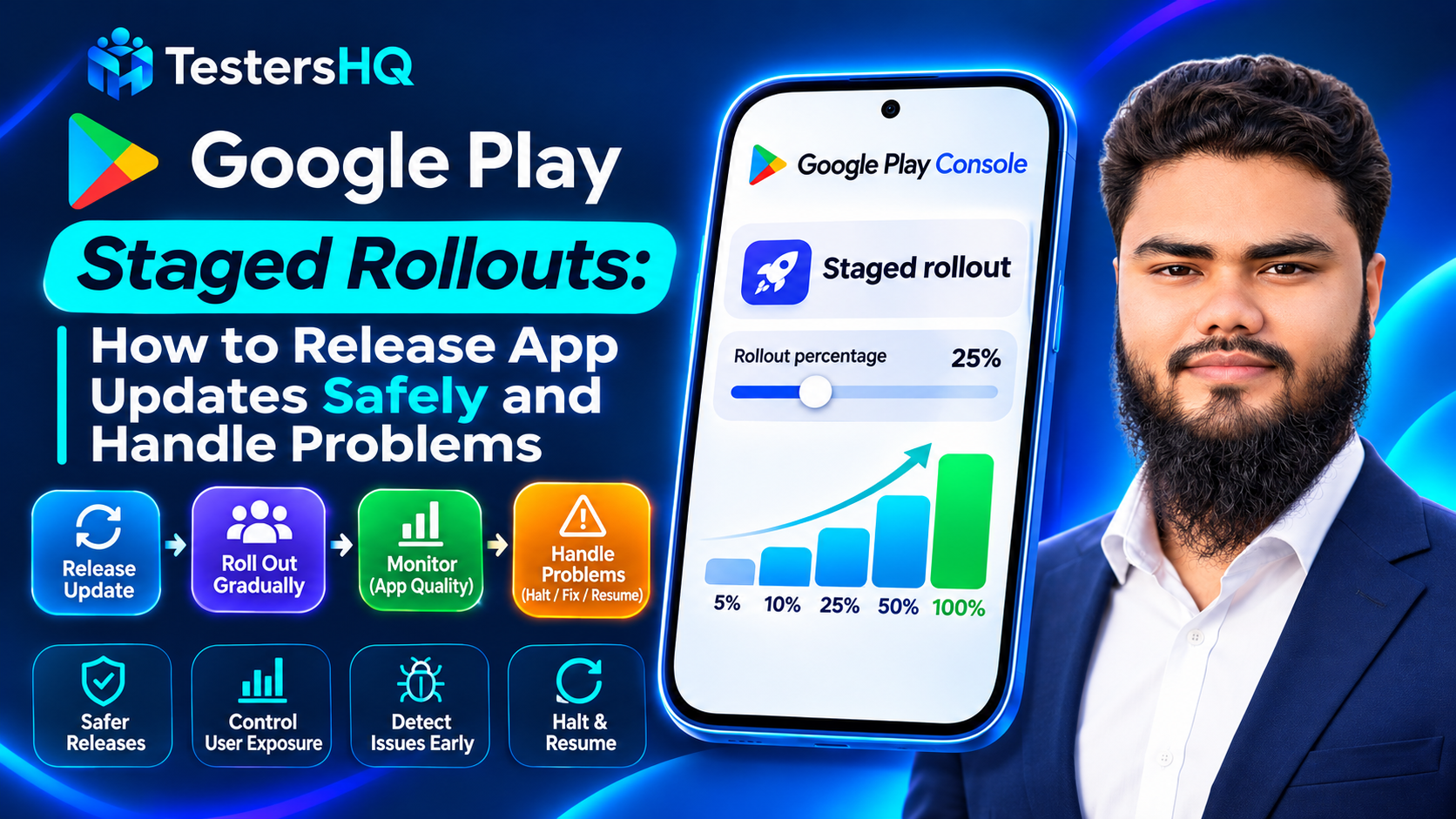
A common pattern looks like 5% → 10% → 25% → 50% → 100%. That is an illustrative strategy, not a Google-mandated schedule; nothing in the documentation requires those steps. Each increase should be a decision backed by evidence, not a timer.
Google also recommends updating your store listing after the release has rolled out to 100% of users, if the update needs listing changes.
How to Start a Staged Rollout in Play Console
These are the navigation steps Google documents. Labels shift, but the sequence holds.
- Open Play Console and select your app.
- Go to the track: Test and release → Production, or the Open / Closed testing page for a test track.
- Open the Releases tab and create a release, or click Edit on the one to update.
- Prepare the release — app bundle, release name, release notes.
- Click Review release to reach the review and release step.
- Find the Staged rollout section and enter a percentage.
- Optionally set country availability — shown only when updating a production release.
- Click Start rollout to production, or the equivalent on your track.
To raise the percentage later: on the Releases tab, under the release, choose Manage rollout → Update rollout, change the percentage, and click Confirm update.
One prerequisite: you cannot create a new release while you have outstanding releases. Roll staged releases to 100%, or remove changes on the Publishing overview page and discard unpublished releases first.
How to Monitor an App Update After Release
Google's advice is direct: during a staged rollout, closely monitor crash reports and user feedback, noting that users receiving the rollout can leave public reviews.
- Crashes and ANRs. Clusters with affected users, filterable by app version, Android version, device model and country. Filter by version to compare the new build against the old one.
- Android Vitals. Core vitals show a trend rather than one sample; the Android Vitals guide covers the thresholds.
- Release overview metrics. Installs, updates, performance issues and ratings against previous releases.
- Reviews and support. A review naming a screen or device is a signal before a cluster forms.
- Core journeys. Sign-in, checkout, purchase, sync — where a failure is unrecoverable.
Compare like with like: the same metric on the previous version beats a crash rate against last week. Small percentages give small samples, so early numbers are noisy.
An illustrative monitoring plan
| Illustrative stage | What to monitor | Before increasing exposure |
|---|---|---|
| 5% | New clusters on the new version; reviews naming a broken flow | No cluster blocking a core journey; no unexplained rise against the previous version |
| 10–25% | Device and Android version breakdowns; support volume; performance signals | Patterns explained or ruled out; no device family concentrating failures |
| 50% | Core-vital trend, ratings average, whether earlier issues stayed fixed | Metrics holding at the larger sample, not flat because the sample was small |
| 100% | Same signals, plus issues that only appear at full scale | Nothing left to widen — the halt actions below apply |
When Should You Halt a Staged Rollout?
Halt when more exposure clearly costs more than more data is worth:
- A core journey is broken — users cannot sign in, pay, or finish the primary task.
- A crash or ANR pattern is concentrated and growing, especially on a device family with many users.
- Data loss or corruption is possible, where waiting makes recovery harder.
- Reviews have turned sharply and describe the same failure.
Do not halt over noise either: a few isolated crashes or a metric that moved by a fraction at 5% is a reason to look closer, not to stop.
How to Halt and Resume a Staged Rollout
Google documents the purpose plainly: if you discover an issue, you can halt a staged rollout to minimize the number of users who experience it.
To halt: on the track's Releases tab, choose Manage rollout → Halt rollout. No additional users receive that version; existing recipients remain on it.
To resume: on the web, choose Manage rollout → Resume rollout, update the percentage, and click Confirm update. In the Play Console app, tap the track on the Active releases card, then Staged rollout → Resume rollout → Resume.
Resume when the bundle is confirmed not to be the cause — a server-side failure, or a configuration you have since changed. Resuming reaches the same group, so verify first.
If the bundle itself is at fault, Google's documented tip is a new release with a fixed app bundle rather than resuming the faulty one.
| Action | When it is appropriate | Important result or limitation |
|---|---|---|
| Halt | A critical issue appears and more exposure would make it worse | No additional users get it; existing recipients stay |
| Resume | The bundle is not the cause, or the cause is fixed outside the app | Reaches the same group, so verify first |
| New fixed release | The app bundle itself is faulty | Google's documented recommendation; needs a rebuild and fresh rollout |
What Happens When You Halt a 100% Rollout?
This is a different operation from halting an unfinished rollout, documented separately.
You can halt a release already rolled out to 100%, to minimise disruption when a critical issue is found by preventing new and existing users from installing or updating to the affected version. The material consequence: the previous version becomes available to new users, and to anyone not using the halted version.
Google documents three limits:
- You cannot halt your first release on a track — there is no previous release to fall back to.
- A previous release with a policy violation cannot be used in place of the halted one.
- Timing matters. If the release is old or reaches a large share of users, halting may not help much because most may already have updated.
And the limit easiest to misread: halting does not reverse what already happened. Users who installed the affected version stay on it.
Country Targeting During Staged Rollouts
Staged rollouts can be limited by country. Google documents the behaviour precisely:
- Default availability follows production. Country availability matches your app's production track configuration.
- You can narrow it. Under Country availability, choose Select specific countries/regions. Google notes these options appear only when updating a production release.
- Targeting is by Play account location. The update reaches users with Play accounts in those locations.
- It is one-way once started. After a staged rollout has started, you cannot remove countries.
Keep this separate from your app's overall distribution: production track availability governs where the app is offered long term, while countries chosen inside a rollout narrow one rollout and cannot be undone mid-flight.
Staged Rollout vs. Managed Publishing
Managed publishing is a separate control on the Publishing overview page that lets you decide when certain changes are published, instead of going live as soon as review completes — useful for timing an update around a campaign or launch.
The two answer different questions. A staged rollout decides how many users receive a release; managed publishing decides whether and when a change is published.
One interaction is easy to miss. Google lists full and staged rollouts among the changes managed publishing holds back, then documents exceptions — and increasing an existing staged roll-out to 100% is one, alongside release note updates, device exclusion rules, testing list membership, unpublishing, in-app product pages and price changes.
Practical Release Strategy and Example
A workable routine for a team shipping regularly:
- Finish pre-release testing first — internal, then closed testing on the devices your analytics say matter.
- Start small. Pick a first percentage you can actually monitor; a readable slice beats a large one.
- Wait for signal, not for a clock. Give crashes and reviews time to appear before deciding.
- Increase in steps while the evidence stays clean, checking version-filtered metrics each time.
- Hold store listing changes until 100%, as Google recommends.
- Pre-agree the halt decision, so the call is not made under pressure.
Illustrative example: a team ships at 5%, sees two new crash clusters on one manufacturer's devices within a day, and reads the stack trace. A bundled library has a compatibility bug. They halt, fix the bundle, and ship a new release that again reaches the small group. The specific numbers do not matter.
Common Mistakes Developers Should Avoid
| Problem | What to investigate | Practical next step |
|---|---|---|
| Treating the rollout as a testing substitute | Whether the release passed real-device and pre-launch checks | Move that work earlier; the rollout only limits exposure |
| Expecting the percentage to rise by itself | Whether anyone owns the widening decision | Update it via Manage rollout > Update rollout |
| Reading metrics without the version filter | Whether the rise comes from the new build or the old one | Filter by app version before concluding anything |
| Halted, then resumed without a fix | Whether the bundle is genuinely unchanged since the halt | Ship a new fixed release if the bundle is at fault |
| Assuming halting reverts installs | How many users updated before the halt | Plan messaging for users already on the affected version |
| Removing countries mid-rollout | Whether targeting was set correctly first | Decide countries first — it cannot be undone mid-rollout |
Pre-release and Post-release Checklist
Before starting the rollout
- Real-device and pre-launch checks passed on the devices that matter.
- Release notes written and reviewed.
- Country availability decided, if targeting specific countries.
- First percentage chosen with a monitoring owner attached.
- Halt criteria written down before the release goes out.
After starting the rollout
- Crash and ANR clusters checked with the app version filter applied.
- Core vitals compared against the previous version over a comparable period.
- Public reviews and your feedback channel read for named failures.
- Device model and Android version breakdowns checked for concentration.
- Widening decision taken deliberately, or the rollout halted.
- Store listing updates held until 100%.
Frequently Asked Questions
Can I use a staged rollout for a brand-new app?
No. Staged rollouts only apply to app updates, and percentage options are unavailable for a first release.
Does the rollout percentage increase automatically?
No. Google states the percentage will not increase automatically; you raise it through Manage rollout → Update rollout.
How long does a staged rollout take to reach the selected users?
The update becomes available to the percentage you chose, but it may take time for the full group to receive it. No fixed duration is documented.
Are users notified when they receive a staged rollout update?
No. Google documents that users won't be notified if they receive a version through a staged rollout.
Does halting a rollout remove the update from users who already have it?
No. Users who already received it remain on it; halting only stops additional users receiving it.
Can I halt a release that already reached 100%?
Yes, on any track except internal test tracks. The previous live version becomes available to new users and anyone not on the halted version.
Does managed publishing hold back my staged rollout?
It holds back full and staged rollouts as a category, with documented exceptions — including increasing an existing staged rollout to 100%.
Official Resources
- Release app updates with staged rollouts — eligibility, country targeting, halt and resume
- Halt a fully rolled-out release — capabilities and documented limitations
- Prepare and roll out a release — release creation, rollout percentage, release details
- Control when app changes are reviewed and published — managed publishing and its exceptions
- View crashes and ANRs — clusters, filters and affected users
- Android vitals — core vitals and bad behavior thresholds
- Set up an open, closed, or internal test — the testing tracks that precede a production rollout
Conclusion
A staged rollout is a dial for exposure, not a safety guarantee. It changes how many users meet a bad build; not whether the build is bad. Monitoring therefore matters more than the percentage.
Three habits make it work: choose a first percentage you can read data from, filter by app version before concluding anything, and decide halt criteria before the release.
Know the limits too — users who installed a halted version stay there, a first release on a track cannot be halted, and countries cannot be removed once a rollout starts. Those constraints are why the Google Play testing tracks guide is the right place to start, well before production. TestersHQ works with developers on the real-device validation that makes the first percentage a safer bet.